USB-C hub Ethernet on Linux: a debugging story
When I set up my current laptop with Linux, I left some rough edges to “fix later”. Some of them fixed themselves without me doing anything (that's the best way anyway). And today I squashed one of the last minor bugs: the USB hub not connecting to wired network until I typed some commands after I logged in.
The symptoms
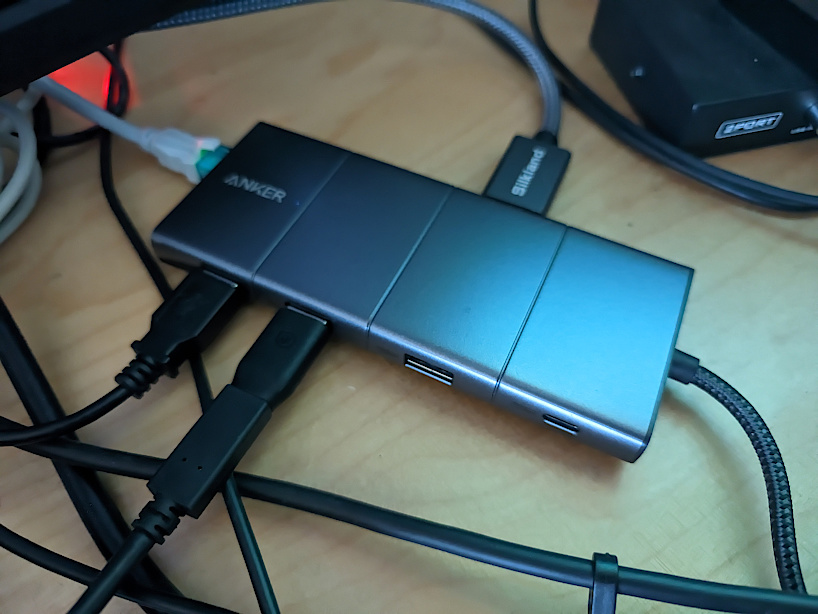
I use the Anker 565 hub as my connectivity workhorse. It's lightweight and has tons of ports: you get all the fun without the price tag and weight of a Thunderbolt hub.
One day, I noticed that my wired network isn't activating. I re-seated the cable, checked the switch, and still nothing. So I opened up a terminal and checked ethtool to see what Linux is thinking about the device. At that moment—bump—the device came alive and connection came up!
This sort of issue is called a Heisenbug, a pun on the Heisenberg's observation uncertainty principle. When we attempt to study this type of bug, the bug disappears. So, literally the very act of running ethtool to poke the device made the device change its mind and connect.
The initial process: contain it & can it
Since the symptom was fairly reproducible, instead of solving “my device does not work” I went to solve “my device only works after ethtool pokes it".
Initially, I filed a bug report to the Linux driver hoping that someone would pick it up, and then I canned the issue. Not that I would be ignorant, but I had a functional workaround (just run the command), and I thought that if the problem was more widespread, somebody might pick on it and fix it, or at least we'd debug collaboratively, which is always more fun.
The debugging process: isolate and check
A year has passed with me always entering the wake-up command manually; finally my patience ran out, so I sat down, debugged and fixed the issue.
When I'm trying to fix an issue in a complex system like this, I always try to isolate and check the layers. Specifically for networking we have these layers:
- Linux device driver
- Power management
- Networking
- User space (network configuration)
Since my initial hypothesis was about the Linux kernel itself, I set myself up to bisect the kernel. Only when I tried to find a version that worked, I could not—even the versions that pre-dated my laptop were behaving the same. How could I then remember this dongle working when all the Linux kernels behave the same? The only answer is that something else must've changed, and I stopped chasing the kernel as the culprit.
Debugging the power management
The next layer in the list is power management. If the device is prematurely being shut down without a chance to provide a link status information, followed by a wake-up when issuing the “poke” command, it could very well explain the symptoms: it does not connect until manual intervention.
Linux provides several knobs to check and alter device's power status and power management policy (always on, auto suspend, etc.). When collecting information, I always create a “diagnose me” script that allows me to print the same information in different states (working, not working) and compare. For USB power the script would look like this:
IFACE=eth0

DEVPATH=$(realpath /sys/class/net/$IFACE/device)
echo "netdev device path: $DEVPATH"

# USB NICs commonly look like .../2-1.4:1.0/...  (interface) and device is 2-1.4
USBIF=$(basename "$DEVPATH")          # e.g. 2-1.4:1.0
USBDEV=${USBIF%%:*}                   # e.g. 2-1.4

for p in "/sys/bus/usb/devices/$USBIF" "/sys/bus/usb/devices/$USBDEV"; do
  echo "== $p =="
  ls "$p/power" &>/dev/null || echo "no power/ here"
  for f in control runtime_status; do
    [ -e "$p/power/$f" ] && echo "$f: $(cat "$p/power/$f")"
  done
done
And the output will look like this:
netdev device path: /sys/devices/pci0000:00/0000:00:08.3/0000:c7:00.3/usb6/6-1/6-1.2/6-1.2:2.0
== /sys/bus/usb/devices/6-1.2:2.0 ==
== /sys/bus/usb/devices/6-1.2 ==
control: auto
runtime_status: suspended
This shows both the power management policy (“auto” in this case) and the status (“suspended”). This is the output I got before running my manual poke-command. And after running it, the runtime status would change to “active”. This means that indeed, the device is suspended initially, so the OS won't talk to it, and it fails to wake up or register the fact that there's a cable connected to it. When the device is poked by ethtool asking “what's your link status”, the device has to wake up, at which point it recognizes the cable and connects to the network as well.
So it seems power management is our culprit—it's too aggressive and does not give the device a chance to say “hey, I should be connecting” before it's shut down.
The fix and a mental note
The final bit was to figure out “why is the device being put to suspend” and possibly “why was it working when I initially set up the laptop, but then stopped working”.
In Linux, there are several power management services that can configure power management rules or profiles. When the laptop was set up, I got the GNOME default power manager, and I replaced it after a while with TLP, which is generally much more optimized and convenient.
This gives answer to both questions: TLP is much more aggressive in its policy—on battery, my laptop can go down to an impressive 8 watts of usage. But that aggressiveness does not play well with my Anker USB dock's Ethernet port. It was put to sleep and never woken up. Fortunately, TLP allows to easily configure exceptions for such situations.
The process is simple: I used lsusb to find my device ID:
$ lsusb | grep -i ethernet
Bus 006 Device 004: ID 0b95:1790 ASIX Electronics Corp. AX88179 Gigabit Ethernet
And edited TLP's config file to add that ID to TLP's deny list:
# /etc/tlp.conf
USB_DENYLIST="0b95:1790"
Since I did that, my Ethernet is no longer suspended, and I no longer need to poke it manually to connect. Hoorah!
Wrapped up, here's a few takeaways from this story:
- Canning an issue in the hopes that it will fix itself only works half the time. Still worth it, but sometimes you need to do the work.
- When debugging a problem, work layer by layer. Isolate each one and collect data that will enable you to see if the fault is in that layer.
- If something does not work, it might be literally because it's powered off.